
Learning how to secure your WordPress website from hackers is essential whether you run a blog, company website, membership platform, online store or client portal.
WordPress itself is actively maintained, but a website can still become vulnerable through outdated plugins, weak passwords, abandoned themes, insecure hosting, excessive user privileges, malware, poor backups or incorrect server settings.
No security measure can guarantee that a website will never be attacked. The goal is to reduce the attack surface, prevent common compromises, detect suspicious activity quickly and maintain a reliable recovery plan.
This guide explains practical steps you can use to strengthen your WordPress website without relying on one plugin to do everything.
Quick answer
Secure WordPress by keeping the core software, plugins and themes updated; removing unused software; using unique passwords and two-factor authentication; limiting administrator access; enabling HTTPS; maintaining off-site backups; installing a reputable security firewall; monitoring activity; and using secure hosting.
Back up before making security changes
Create a complete backup of the website files and database before changing login settings, file permissions, firewall rules, plugins or server configuration.
Why Do WordPress Websites Get Hacked?
Attackers often use automated tools to scan thousands of websites for known weaknesses.
A website does not need to be famous or receive significant traffic to become a target.
Common causes of WordPress compromises include:
- Outdated plugins, themes or WordPress core files
- Weak or reused passwords
- Stolen administrator credentials
- Abandoned plugins
- Pirated themes or plugins
- Excessive user permissions
- Insecure hosting accounts
- Unprotected login forms
- Malicious file uploads
- Compromised administrator computers
- Incorrect file permissions
- Exposed backup files
What hackers may do after gaining access
- Inject spam pages or links
- Redirect visitors to malicious websites
- Steal customer or user data
- Create hidden administrator accounts
- Send spam email from the server
- Modify payment information
- Install malware or backdoors
- Use the server to attack other websites
- Damage search visibility
Security principle
Most WordPress security improvements involve reducing unnecessary access, keeping software patched and preparing for recovery.
1. Keep WordPress, Plugins and Themes Updated
Updates often include fixes for security vulnerabilities, compatibility problems and software bugs.
Running outdated software may leave a known weakness available long after a fix has been released.
Keep these components updated:
- WordPress core
- Active plugins
- Active theme
- Inactive themes that remain installed
- Server PHP version
- Database software where managed by you
Before updating:
- Create a backup
- Check the update notes
- Confirm compatibility
- Use a staging site for major updates where possible
- Test forms, checkout and login functions afterward
Automatic updates
Automatic security updates can reduce the time your website remains exposed after a fix becomes available.
However, websites with complex custom functionality should still be monitored after automatic updates.
Do not delay updates indefinitely
Compatibility concerns are valid, but permanently ignoring security updates creates unnecessary risk. Test updates promptly rather than leaving vulnerable software active.
2. Remove Unused Plugins and Themes
Deactivating a plugin does not remove its files from the server.
If vulnerable code remains installed, it may still increase the website’s attack surface.
Remove:
- Inactive plugins you no longer use
- Abandoned themes
- Old backup plugins
- Duplicate security tools
- Unused page builders
- Temporary migration plugins
- Test plugins installed during development
Keep one fallback theme
You may keep one current default WordPress theme for troubleshooting, but remove unnecessary older themes.
Avoid pirated software
Do not install nulled or pirated themes and plugins. Modified packages may contain hidden malware, backdoors or unauthorised advertising code.
3. Use Strong and Unique Passwords
A strong password is long, unique and not reused on another service.
Reusing the same password across email, hosting and WordPress increases the damage if one account is compromised.
Protect all important accounts:
- WordPress administrators
- Hosting dashboard
- Domain registrar
- Business email
- Database administrator
- CDN or firewall account
- Backup storage
Use a password manager
A reputable password manager can generate and store unique credentials without requiring you to memorise every password.
Avoid predictable credentials
Do not use:
- Company name followed by a year
- Domain name
- Personal names
- Simple keyboard patterns
- The same password for multiple administrators
4. Enable Two-Factor Authentication
Two-factor authentication requires another form of verification in addition to the password.
This can prevent many account compromises even when an attacker obtains the password.
Common verification methods include:
- Authenticator applications
- Hardware security keys
- Passkeys
- One-time recovery codes
- Email codes
Prioritise these accounts:
- WordPress administrators
- Hosting account
- Domain registrar
- Primary email account
- Backup-storage account
Store recovery codes safely
Keep recovery codes outside the WordPress website. If the site becomes inaccessible, codes stored only inside it may not help.
Recommended approach
Use an authenticator app, security key or passkey where available, and keep secure recovery options.
5. Limit User Access and Administrator Privileges
Not every person who works on a website requires administrator access.
WordPress user roles include:
- Administrator
- Editor
- Author
- Contributor
- Subscriber
Follow the principle of least privilege
Give every user only the permissions needed to complete their work.
Regularly review users
- Remove former employees and contractors
- Delete unknown accounts
- Downgrade unnecessary administrators
- Review recently created accounts
- Require separate accounts instead of sharing one login
Protect the main administrator account
Avoid using an obvious administrator username and do not publish the login username unnecessarily.
6. Use Secure and Maintained WordPress Hosting
Your hosting environment affects the security of the files, database and server.
Look for hosting that provides:
- Regular server updates
- Malware monitoring
- Account isolation
- Automatic backups
- Web application firewall options
- DDoS protection
- Secure file transfer
- Supported PHP versions
- Clear security incident support
Shared hosting considerations
Shared hosting is not automatically insecure, but account isolation and server maintenance are important when several websites share infrastructure.
Protect the hosting account
- Enable two-factor authentication
- Remove old FTP accounts
- Use SFTP instead of unencrypted FTP where available
- Review access logs
- Remove unused databases
7. Enable HTTPS and Maintain a Valid SSL Certificate
HTTPS encrypts information exchanged between visitors and the website.
It protects login credentials, form submissions and other data while it travels across the network.
Confirm that:
- The SSL certificate is valid
- The certificate covers the primary domain
- The www and non-www versions are handled correctly
- HTTP redirects to HTTPS
- WordPress Address uses HTTPS
- Site Address uses HTTPS
- No important assets load through insecure HTTP
Mixed content
Mixed-content warnings occur when an HTTPS page loads scripts, images or styles through an insecure HTTP connection.
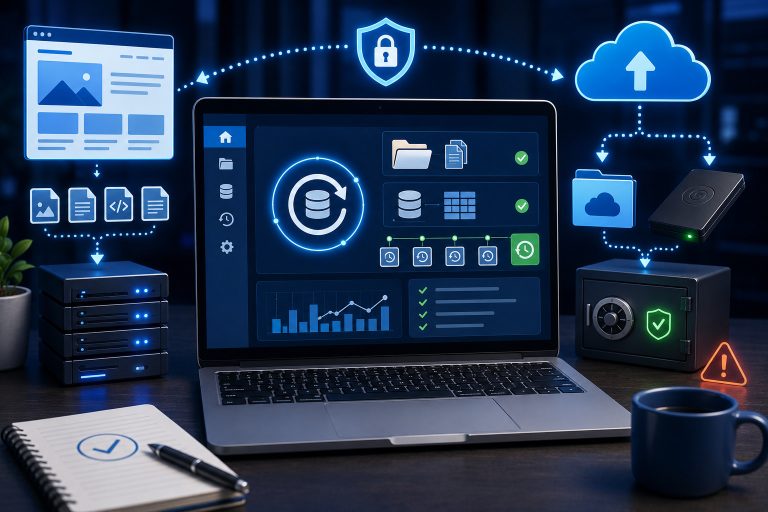
8. Create Reliable Off-Site Backups
A backup is one of the most important parts of a security strategy because prevention can never remove every risk.
A complete WordPress backup should include:
- Database
- Uploaded media
- Theme files
- Plugin files
- Configuration files
- Custom code
Keep backups off-site
Do not store every backup inside the same hosting account. If the server is compromised or deleted, local backups may also be lost.
Use multiple backup copies
A practical approach is to keep:
- A recent automatic backup
- Several older restore points
- An off-site copy
- A backup created before major updates
Test restoration
A backup is only useful when it can be restored. Test the process on staging or with help from the hosting provider.
Backups are not a firewall
Backups help recovery after an incident. They do not prevent attackers from entering the website.
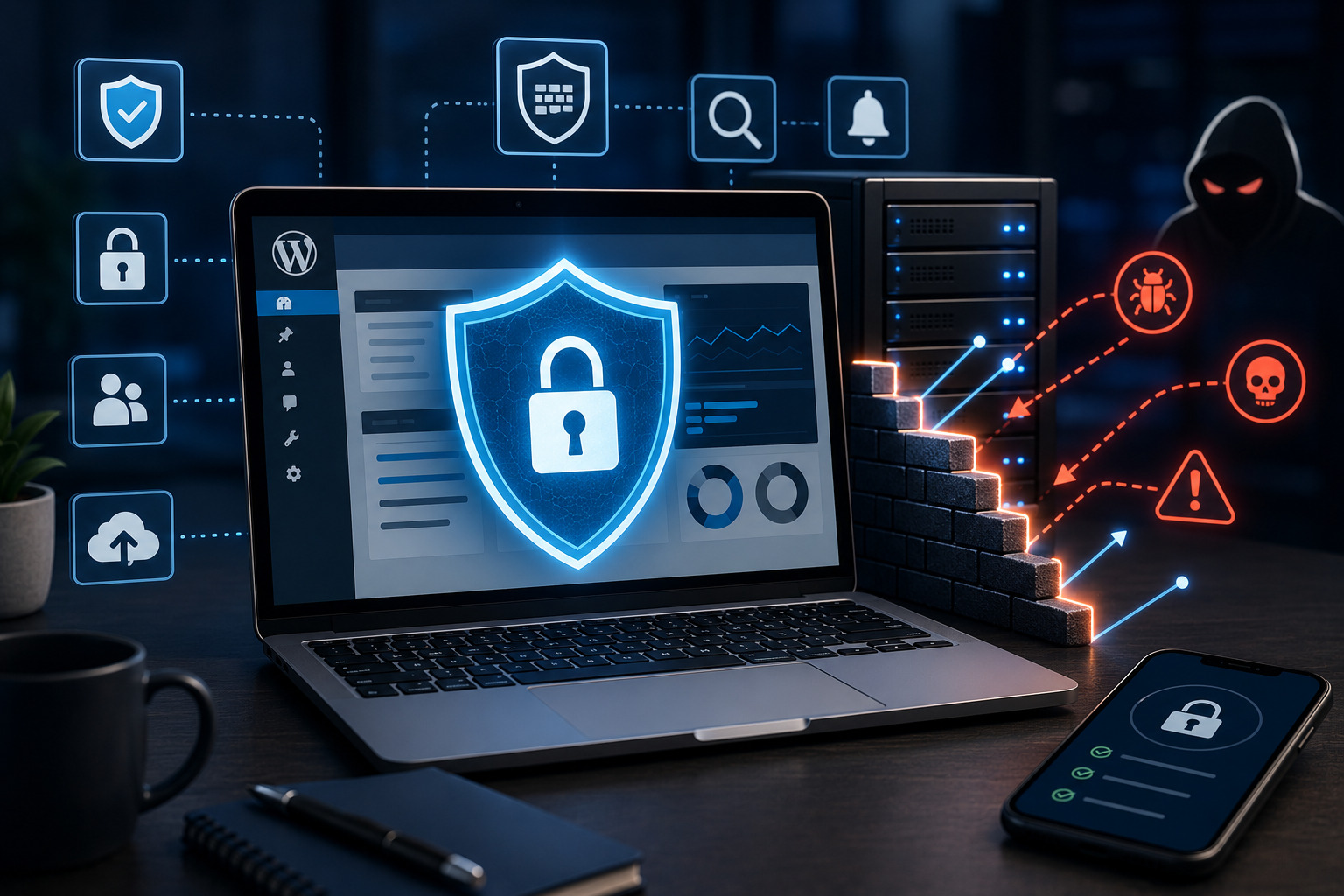
9. Install One Reputable WordPress Security Plugin
A security plugin can help monitor login attempts, scan files, detect changes and apply protective rules.
Useful features may include:
- Login-attempt limiting
- Two-factor authentication
- Malware scanning
- File-change monitoring
- Firewall rules
- Security alerts
- User activity logs
- IP blocking
Avoid installing several overlapping security plugins
Multiple plugins performing identical scans, firewall checks and login controls may conflict or consume excessive server resources.
Configure alerts carefully
Enable notifications for important events without creating so many alerts that genuine warnings are ignored.
10. Use a Web Application Firewall
A web application firewall filters and monitors web traffic before it reaches the application.
It may help block malicious requests, exploit attempts, abusive bots and suspicious traffic patterns.
Firewall options include:
- Server-level firewall
- WordPress security-plugin firewall
- Cloud-based firewall or CDN
- Managed hosting firewall
A cloud firewall can also help with:
- DDoS mitigation
- Rate limiting
- Bot filtering
- Geographic traffic controls
- Blocking known malicious addresses
Do not block legitimate users
Review firewall logs after changing rules. Overly aggressive settings can block search engines, payment providers, forms or administrators.
11. Protect the WordPress Login Page
Automated brute-force attacks repeatedly try username and password combinations.
Strengthen login security by:
- Enabling two-factor authentication
- Limiting repeated failed login attempts
- Using a firewall or rate limiting
- Removing inactive users
- Using unique passwords
- Monitoring failed logins
- Adding CAPTCHA where appropriate
Changing the login URL
Changing the default login URL can reduce some automated noise, but it should not be treated as the main security control.
Attackers may still discover the login route or exploit another vulnerability.
XML-RPC
Some plugins and external applications use XML-RPC. Do not disable it blindly if the website depends on it.
Where it is not required, a security tool may restrict abusive XML-RPC requests.
12. Protect Important WordPress Files and the Database
WordPress configuration files contain sensitive information and should not be publicly accessible.
Important areas include:
- wp-config.php
- .htaccess or server configuration
- Database credentials
- Backup files
- Error logs
- Environment files
File permissions
Files and folders should use permissions appropriate for the hosting environment.
Do not make files broadly writable unless the hosting provider or developer specifically requires it.
Disable file editing
Website owners may disable the built-in theme and plugin editor to reduce the ability to modify code through the WordPress dashboard.
This can be configured carefully inside wp-config.php:
define( 'DISALLOW_FILE_EDIT', true );Protect database access
- Use strong database credentials
- Do not expose database management tools publicly
- Delete unused databases
- Restrict remote database access
- Keep credentials outside public documents
Be careful when editing wp-config.php
A syntax error can make the website inaccessible. Create a backup and use a staging environment where possible.
13. Monitor Login, File and User Activity
Security monitoring helps you identify suspicious behaviour before it becomes a larger incident.
Monitor events such as:
- Administrator logins
- Failed login attempts
- New user creation
- Plugin installation
- Theme activation
- File modifications
- Changes to payment settings
- Unexpected redirects
- Changes to DNS or hosting
Keep logs securely
Important logs should remain available even if the WordPress installation becomes compromised.
Review hosting logs
Server access and error logs may reveal suspicious requests, repeated login attempts or unusual activity.
14. Scan for Malware and Unexpected File Changes
A malware scan can identify suspicious code, modified core files, injected links and known malicious patterns.
Possible signs of compromise include:
- Unknown files
- New administrators
- Spam pages in search results
- Redirects to unrelated websites
- Browser security warnings
- Sudden server resource usage
- Emails being sent unexpectedly
- Modified payment details
Use more than one source of evidence
A security plugin, hosting scan and external website scan may detect different issues.
False positives
Not every unfamiliar file is malicious. Confirm suspicious findings before deleting important application files.
15. Protect Forms, Comments and User Registration
Public forms can be abused for spam, fraudulent registrations and automated attacks.
Protect forms by:
- Using CAPTCHA or anti-spam protection
- Rate limiting repeated submissions
- Validating uploaded files
- Restricting file types
- Limiting upload size
- Keeping form plugins updated
- Sending notifications for suspicious submissions
Disable registration if it is not needed
Check:
Settings → General → Membership
If visitors do not need accounts, confirm that public registration is disabled.
Review the default new-user role
New public users should not receive administrator or editor permissions.
16. Review WordPress Application Passwords
Application passwords allow external tools and integrations to access WordPress without using the user’s primary login password.
Review them regularly
- Delete credentials for integrations you no longer use
- Create separate credentials for each application
- Do not share one application password across several tools
- Revoke a credential immediately after suspected exposure
Application passwords are not dashboard passwords
They are intended for programmatic access and can be revoked individually.
What to Do if Your WordPress Website Is Hacked
Step 1: Do not panic or delete evidence
Record the symptoms, suspicious URLs, warnings and approximate time the problem began.
Step 2: Contact the hosting provider
Ask whether the server shows malware, suspicious processes, modified files or unusual traffic.
Step 3: Place the site in a controlled maintenance state
For serious incidents involving visitors or payments, limit public access while the problem is investigated.
Step 4: Change important credentials
- WordPress administrators
- Hosting account
- Domain registrar
- Database
- SFTP or SSH
- Business email
- API credentials
Step 5: Remove unknown administrators
Review every WordPress user account.
Step 6: Scan and clean the website
Use professional help when the compromise is extensive or involves customer data.
Step 7: Reinstall trusted software
Replace compromised WordPress core, plugin and theme files with clean copies from official sources.
Step 8: Restore from a clean backup where appropriate
Confirm that the backup was created before the compromise.
Step 9: Identify the entry point
Without fixing the original vulnerability, the attacker may return after the website is cleaned.
Step 10: Review legal and notification obligations
When personal or payment data may have been exposed, obtain appropriate professional guidance for applicable privacy and breach-notification requirements.
WordPress Security Checklist
Access and software
- WordPress is updated
- Plugins are updated
- Theme is updated
- Unused plugins are deleted
- Unused themes are deleted
- Passwords are unique
- Two-factor authentication is active
- Old users are removed
- Administrator access is limited
- Application passwords are reviewed
Server and recovery
- HTTPS is active
- Hosting software is maintained
- Off-site backups are running
- Backups are tested
- A firewall is active
- Malware scans are scheduled
- Login attempts are monitored
- File changes are monitored
- Forms are protected
- A recovery plan exists
Final Verdict: How to Secure Your WordPress Website From Hackers
If you want to secure your WordPress website from hackers, begin with the fundamentals rather than looking for one perfect security plugin.
Keep WordPress, themes and plugins updated. Remove software you do not use. Protect administrator accounts with unique passwords and two-factor authentication. Limit user permissions, enable HTTPS and maintain tested off-site backups.
A reputable security plugin and firewall can provide important monitoring and protection, but they should support—not replace—secure hosting, responsible maintenance and controlled access.
Review logs and users regularly so that suspicious changes are found quickly. If the website is compromised, clean it carefully, replace exposed credentials and identify the original entry point before returning it to normal use.
Our recommendation
Build WordPress security in layers: secure hosting, updates, strong authentication, limited access, HTTPS, firewalls, monitoring and reliable backups. No single layer should be responsible for protecting the entire website.
Frequently Asked Questions
How do I secure my WordPress website from hackers?
Keep WordPress and all extensions updated, use strong passwords, enable two-factor authentication, limit administrator access, install a firewall and maintain off-site backups.
Is WordPress secure?
WordPress is actively maintained, but the security of an individual website also depends on its plugins, themes, hosting, passwords, users and maintenance practices.
Do I need a WordPress security plugin?
A reputable security plugin can provide useful monitoring, login protection, scanning and firewall features, but it should not replace updates, backups and secure hosting.
Can too many security plugins cause problems?
Yes. Several plugins providing the same firewall, scanning or login functions can conflict and consume server resources.
Does changing the WordPress login URL stop hackers?
It may reduce automated login attempts, but it does not replace strong passwords, two-factor authentication, rate limiting and software updates.
How often should I update WordPress?
Review and install security updates promptly after confirming compatibility and creating a backup.
Should inactive plugins be deleted?
Yes, remove inactive plugins that you no longer use because their files remain on the server.
Does HTTPS prevent WordPress hacking?
HTTPS protects data while it travels between visitors and the website, but it does not fix vulnerable plugins, weak passwords or malware.
How often should I back up WordPress?
The frequency should match how often the website changes. Active stores and membership sites may need more frequent backups than a rarely updated brochure site.
Where should WordPress backups be stored?
Keep at least one copy outside the main hosting account using secure cloud storage, another server or a managed backup service.
What are the signs that a WordPress website has been hacked?
Common signs include redirects, unknown administrators, modified files, spam pages, malware warnings, unusual server usage and unauthorised content.
Can weak hosting make WordPress less secure?
Yes. Poor server maintenance, weak account isolation and outdated software can increase risk.
Should I disable XML-RPC?
Disable or restrict it only when your website and integrations do not require it. Some mobile apps and external services may depend on XML-RPC.
What is a WordPress firewall?
A firewall monitors and filters website traffic to block suspicious or malicious requests before they reach vulnerable functionality.
Can two-factor authentication stop brute-force attacks?
It adds an important second verification step and greatly reduces the risk of a stolen or guessed password being enough to access the account.
Can I clean a hacked WordPress site myself?
Minor incidents may be manageable, but professional help is recommended when customer data, payments, server access or persistent malware are involved.
Need Help Securing Your WordPress Website?
Teemikemedia Agency can review your WordPress installation, plugins, user accounts, backups, firewall, login protection and hosting configuration to identify security risks.