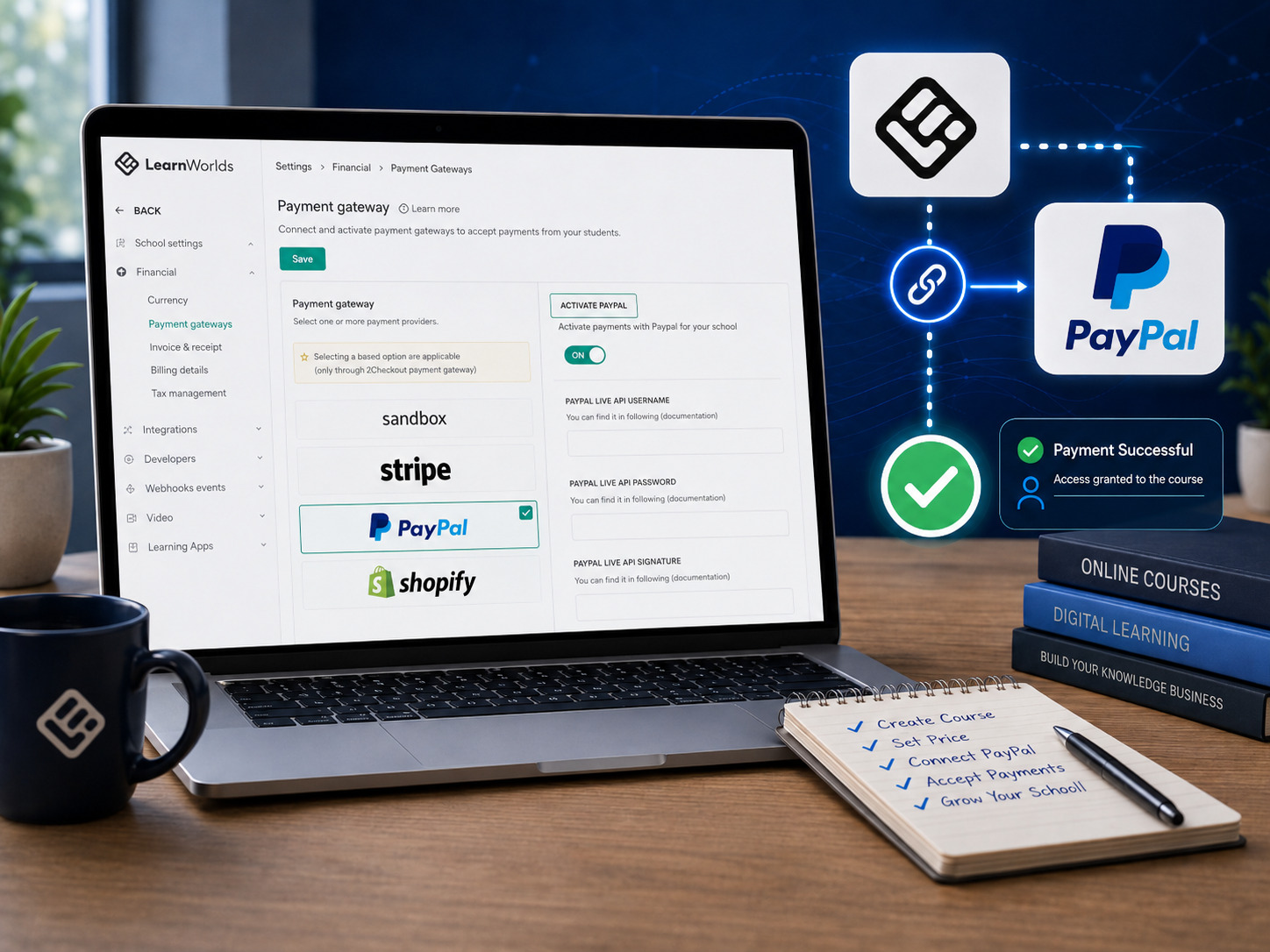

Connecting PayPal to LearnWorlds allows students to pay for your online courses through a familiar and widely used payment method. Once the integration is active, eligible learners can choose PayPal during checkout, complete their payment securely and receive access according to the course or learning programme settings you have configured.
The integration is useful for course creators who want to offer another payment option alongside Stripe or who serve customers who prefer paying from a PayPal balance, linked bank account or supported card.
However, the setup must be completed carefully. You need an eligible PayPal Business account, the correct live credentials and matching payment settings inside LearnWorlds. Using sandbox credentials on a live school, copying the wrong secret or leaving PayPal disabled can prevent customers from completing purchases.
This guide explains how to connect PayPal to LearnWorlds, obtain the correct Client ID and Secret, activate the gateway, test the checkout process and troubleshoot common payment problems.
Quick answer
To connect PayPal to LearnWorlds, use a verified PayPal Business account, create or open a PayPal developer application and copy its live Client ID and Secret. In LearnWorlds, go to Settings → Financial → Payment Gateways, open PayPal, enable the gateway and enter the credentials. Save the settings, assign a paid access option to a course and complete a controlled test purchase before launching.
What You Need Before Connecting PayPal
Prepare the required accounts and information before changing your payment settings.
You should have:
- An active LearnWorlds school
- Administrator access to the LearnWorlds dashboard
- A PayPal Business account
- Access to the email address and telephone number connected to PayPal
- A course or learning programme with a paid-access option
- Your preferred selling currency
- A separate email address for testing the student checkout
Confirm that your LearnWorlds plan supports payments
Review your LearnWorlds subscription and confirm that the payment gateway and ecommerce features required for your products are available.
Verify your PayPal account
PayPal may require identity, business, bank-account or card verification before the account can receive payments without restrictions.
Do not use a personal PayPal account
LearnWorlds requires a PayPal Business account for the integration. A business account provides the merchant and developer features needed to connect an online checkout.
Preparation principle
Complete your PayPal Business verification and confirm your LearnWorlds ecommerce access before creating credentials.
How PayPal Works with LearnWorlds
LearnWorlds acts as the course platform and checkout system, while PayPal processes the financial transaction.
The normal payment flow is:
- A learner selects a paid course or programme.
- The learner proceeds to the LearnWorlds checkout.
- The learner chooses PayPal as the payment method.
- PayPal securely handles the login or payment information.
- PayPal confirms the transaction.
- LearnWorlds records the payment and grants access according to your product settings.
LearnWorlds does not store the student’s PayPal password
The sensitive PayPal login and payment process takes place through PayPal’s secure system. Your LearnWorlds school receives the transaction result needed to complete enrolment and record the payment.
You can connect more than one built-in gateway
LearnWorlds can support PayPal alongside another compatible gateway such as Stripe, allowing customers to choose from the methods available in your school.
Integration principle
LearnWorlds controls the course checkout and enrolment, while PayPal authorises and processes the payment.
Watch the Video Tutorial
The video below demonstrates the PayPal connection process inside LearnWorlds. Some menu labels or credential requirements may have changed since the recording, so use the updated written instructions in this article when the current dashboard differs.
Important update
Older LearnWorlds and PayPal tutorials may show an API username, API password and signature. The current LearnWorlds PayPal setup requests a PayPal Client ID and Secret. Follow the fields displayed in your present LearnWorlds dashboard.
Step 1: Create or Upgrade to a PayPal Business Account
Log in to PayPal and confirm that the account type is Business.
Why a Business account is required
A PayPal Business account provides merchant tools, developer applications and payment credentials that are not normally available through a standard personal account.
Complete your business profile
PayPal may request:
- Your legal or trading name
- Business type
- Business address
- Telephone number
- Website address
- Identity documents
- Bank-account or card verification
Use accurate information
The business and account-owner information should be accurate and consistent with the documents you may be asked to provide.
Check country availability
PayPal services, supported currencies, account features and withdrawal methods vary by country. Confirm that receiving commercial payments is supported for your account location.
Account principle
Use a verified PayPal Business account that is legally permitted to receive online payments in your country.
Step 2: Open the PayPal Developer Dashboard
After preparing the Business account, open the PayPal Developer dashboard while signed in to the same PayPal account.
Locate your applications
Look for the section containing Apps & Credentials or a similarly named developer-applications area.
Sandbox and Live are different environments
PayPal normally separates test credentials from real production credentials.
- Sandbox: used for simulated payments with test accounts
- Live: used for actual customer payments
Do not mix the environments
A sandbox Client ID and live Secret will not work together. Both values must come from the same application and environment.
Create an application when necessary
If no suitable application exists, create one and give it a clear internal name, such as:
Teemikemedia LearnWorlds School
The application name is for your own management and does not need to match the course title.
Keep test and live credentials separate
Use sandbox credentials only when LearnWorlds is configured for a supported testing environment. Use live credentials when accepting real customer payments.
Step 3: Get the PayPal Client ID and Secret
Open the PayPal application and select the appropriate environment.
Copy the Client ID
The Client ID identifies your PayPal application. Copy the complete value without adding spaces or quotation marks.
Reveal and copy the Secret
The Secret authenticates the application and must be protected carefully.
Do not share the Secret publicly
Never place it inside a public article, screenshot, support forum, email newsletter or client-facing document.
Store the credentials securely
Use a reputable password manager or another restricted storage location. Do not save the Secret in an unprotected note or spreadsheet accessible to unauthorised users.
Use the current credentials requested by LearnWorlds
If the fields in LearnWorlds request Client ID and Secret, do not enter an API username, password or NVP/SOAP signature from an older PayPal integration.
Credential principle
Copy the live Client ID and live Secret from the same PayPal application, and treat the Secret like a password.
Step 4: Open the LearnWorlds Payment Settings
Log in to your LearnWorlds school as an administrator.
Go to:
Settings → Financial → Payment Gateways
The exact wording may vary slightly as LearnWorlds updates its interface, but the gateway settings remain within the financial or payment area.
Review the available gateways
You should see PayPal and any other gateways supported by your school.
Check whether sandbox mode is active
Before launching your school, confirm whether LearnWorlds is configured for testing or live transactions.
Do not accept real orders while testing
If the gateway is incomplete or connected to sandbox credentials, keep the relevant products hidden or clearly marked as unavailable until testing is complete.
Navigation path
Open Settings, select Financial and then choose Payment Gateways to manage the PayPal connection.
Step 5: Enable the PayPal Gateway
Open the PayPal gateway settings and activate the option that makes PayPal available in your school.
Enable does not mean fully configured
The gateway may appear active before the credentials have been validated. Complete all required fields and testing before announcing the payment option.
Review the instructions shown by LearnWorlds
LearnWorlds may provide platform-specific notes, warnings or additional configuration requirements.
Check the payment-page display
After activation, PayPal should become an available method in the checkout where the product and account configuration support it.
Do not leave incomplete credentials active
An enabled but incorrectly configured gateway can frustrate customers and create abandoned purchases.
Step 6: Enter the Client ID and Secret
Paste the values into their matching LearnWorlds fields.
Enter the Client ID
Paste the complete Client ID copied from the PayPal developer application.
Enter the Secret
Paste the Secret into the corresponding secure field.
Check for accidental spaces
A space before or after a credential can cause authentication errors. Paste each value carefully.
Save the settings
Click Save, Update or the equivalent button provided by LearnWorlds.
Do not expose the credentials in screenshots
Hide or blur the values when recording tutorials, requesting support or sharing access with a contractor.
Setup principle
Match every value to the correct field, remove accidental spaces and save the gateway settings before testing.
Step 7: Check Your Currency and Pricing
Your course pricing and PayPal account must support the currencies you intend to accept.
Review the school currency
Confirm that the selling currency configured in LearnWorlds matches your pricing strategy and is supported by PayPal for your account.
Check PayPal conversion fees
When customers pay in another currency, PayPal may apply conversion rates or fees according to the merchant account and transaction.
Use clear customer-facing prices
Display the course price and currency clearly on sales and checkout pages.
Consider international customers
Review whether the payment method, currency and tax configuration are suitable for the countries you serve.
Currency principle
Confirm that your course price, LearnWorlds currency and PayPal merchant capabilities work together before selling internationally.
Step 8: Configure Paid Access for the Course
Connecting PayPal does not automatically make every course purchasable. Each course or programme still needs the correct access and pricing settings.
Open the course settings
Select the course or learning programme you want to sell and review its access configuration.
Choose a paid option
Depending on the product and LearnWorlds features available, the options may include:
- One-time payment
- Subscription
- Instalment plan
- Paid bundle or programme access
Enter the correct price
Check the amount carefully before publishing the product.
Review post-purchase access
Confirm that successful customers are automatically enrolled in the intended course or programme.
Test the sales-page button
The Buy, Enrol or checkout button should direct customers to the correct product and payment flow.
Check the product, not only the gateway
A correctly connected PayPal account will not help if the course remains free, private, draft or incorrectly linked to the checkout.
Step 9: Test the Complete Payment Process
Do not assume the gateway works because LearnWorlds accepted the credentials.
Test as a learner
Open the school in a private browser window and use an email address that is not currently logged in as an administrator.
Check the full customer journey
- Open the course sales page
- Click the purchase button
- Proceed to checkout
- Select PayPal
- Complete the authorised test transaction
- Confirm the payment result
- Check course enrolment
- Check the confirmation email
- Check the payment record
Use sandbox or a controlled live test
Use a supported sandbox workflow when available. For a live test, use a low-priced temporary product or another controlled method that complies with PayPal’s terms.
Check the payment record
Inside LearnWorlds, review the payment area to confirm that the transaction was recorded against the correct learner and product.
Testing principle
Test payment, enrolment, email delivery and course access as one complete process before promoting the course publicly.
What Students Experience When Paying with PayPal
The exact screens may vary by device, country and PayPal account status.
The learner normally:
- Selects a paid course
- Enters the required billing details
- Chooses PayPal
- Logs in to PayPal or uses an eligible guest-payment option
- Reviews the transaction
- Approves the payment
- Returns to the school
- Receives access and confirmation
Do not interrupt the return process
The learner should wait for PayPal to return them to the LearnWorlds confirmation page instead of closing the browser immediately after approving payment.
Provide clear support information
Include a contact method for customers who complete payment but do not receive access.
Customer-experience principle
Make checkout expectations clear and provide a fast support route for payment or enrolment problems.
Managing PayPal Payments and Refunds
LearnWorlds records payment activity inside its ecommerce or payments area.
Review payment records
You can use LearnWorlds payment management to review transactions, customers, products, payment status and related records.
Check PayPal as well
PayPal remains the payment processor, so financial settlement, PayPal fees, disputes and certain transaction details may need to be reviewed in the PayPal account.
Handle refunds carefully
Confirm whether the refund should be performed through LearnWorlds, PayPal or a combination of both according to the current platform workflow.
Review course access after a refund
A financial refund and a learner’s course access are related but separate concerns. Confirm whether access should remain, expire or be removed.
Keep financial records
Maintain appropriate records for accounting, tax and customer-support purposes.
Do not process the same refund twice
Review both LearnWorlds and PayPal before repeating a refund that appears delayed or incomplete.
Can Students Pay Without a PayPal Account?
In some countries and account configurations, PayPal may allow customers to pay by card without creating or logging in to a PayPal account.
Guest checkout is controlled by PayPal
The availability can depend on:
- The merchant’s country
- The buyer’s country
- The transaction currency
- The PayPal Business settings
- The customer’s device or risk profile
- PayPal’s eligibility rules
Review the PayPal account settings
Look for website-payment or account-preference options related to allowing payments from customers without a PayPal account.
Do not promise guest checkout to every customer
Even when enabled, PayPal may still require some buyers to log in or create an account.
Guest-payment principle
Enable guest card payments where available, but explain that PayPal controls whether the option appears for a particular transaction.
PayPal Subscriptions and Instalments in LearnWorlds
Course creators may want to offer recurring subscriptions or split a course price into instalments.
Check the current product options
Review whether the LearnWorlds product, plan and connected PayPal configuration support the billing model you want to offer.
Subscriptions involve recurring payments
The student authorises PayPal to charge the agreed amount according to the billing schedule.
Instalments should be explained clearly
Display:
- The amount of each payment
- The billing interval
- The total number of payments
- The total cost
- The access duration
- The cancellation or refund policy
Test renewal behaviour
Confirm how successful renewals, failed payments, cancellations and expired subscriptions affect course access.
Do not create unclear payment plans
Students should understand the total price, payment frequency and cancellation terms before authorising recurring charges.
Security Recommendations for the PayPal Integration
Protect the PayPal Secret
Treat it as sensitive authentication information. Do not send it through unsecured messages or expose it in tutorial screenshots.
Use individual administrator accounts
Avoid sharing one LearnWorlds or PayPal login among several team members.
Enable two-factor authentication
Activate additional account security on PayPal, LearnWorlds and the connected business email account.
Limit administrator access
Give each team member only the permissions required for their role.
Review account activity
Monitor PayPal and LearnWorlds for unexpected logins, credential changes, refunds or payment activity.
Regenerate exposed credentials
If a Secret is accidentally shared publicly, replace it immediately and update the integration.
Security principle
Protect credentials, enable strong authentication and restrict access to payment settings.
Troubleshooting Common PayPal and LearnWorlds Problems
PayPal does not appear at checkout
Check whether the gateway is enabled, the settings are saved and the product has a paid-access option.
LearnWorlds rejects the credentials
Confirm that the Client ID and Secret come from the same PayPal application and environment. Remove accidental spaces and ensure you are not entering legacy API username and signature credentials.
The payment succeeds but the student is not enrolled
Check the LearnWorlds payment record, product assignment, post-purchase navigation and learner account. Contact platform support when the payment confirmation was not processed correctly.
The checkout shows sandbox or test information
Live sales may still be using test credentials or a testing mode. Replace the credentials with the live values and deactivate sandbox mode before launch.
The customer cannot pay without logging in to PayPal
Guest checkout may be unavailable because of the country, account setting, currency, transaction or PayPal eligibility decision.
The currency is not accepted
Confirm that the currency is supported by your PayPal merchant account and configured correctly in LearnWorlds.
The payment remains pending
PayPal may place a transaction under review or delay it according to the payment source and account status. Review the transaction inside PayPal before granting manual access.
A customer was charged but sees an error
Do not ask the customer to repeat the transaction immediately. Check PayPal and LearnWorlds first to avoid a duplicate charge.
Prevent duplicate payments
When a checkout displays an error after PayPal approval, confirm whether a transaction already exists before asking the learner to pay again.
Common Mistakes to Avoid
Using a personal PayPal account
The integration requires a suitable PayPal Business account.
Following an outdated credential tutorial
Older tutorials may use API username, password and signature. Use the fields requested by the current LearnWorlds PayPal gateway.
Mixing live and sandbox credentials
The Client ID and Secret must belong to the same application and environment.
Publishing the PayPal Secret
Never expose sensitive credentials in screenshots, videos or support messages.
Forgetting to save the settings
After entering the credentials, save the gateway configuration before leaving the page.
Testing while logged in as an administrator
Use a separate learner account in a private browser window to experience the real checkout process.
Ignoring course-access settings
The gateway may be working while the product remains free, private or incorrectly configured.
Launching without a full purchase test
Test payment, enrolment, email confirmation and content access before advertising the course.
Requesting another payment before checking the first transaction
This can cause duplicate charges and customer complaints.
Best practice
Use a verified Business account, current live credentials, correct paid-product settings and a complete learner test before launch.
LearnWorlds PayPal Connection Checklist
Account and gateway checklist
- PayPal Business account is active
- PayPal verification is complete
- Live developer application is available
- Live Client ID has been copied
- Live Secret has been copied securely
- PayPal is enabled in LearnWorlds
- Credentials have been saved
- Sandbox mode is off before launch
Course and testing checklist
- Course has a paid-access option
- Price and currency are correct
- Purchase button opens the correct checkout
- PayPal appears as a payment method
- Test payment completes successfully
- Learner is enrolled automatically
- Confirmation email is delivered
- Payment appears in LearnWorlds
- Transaction appears in PayPal
- Refund and support processes are documented
Final Verdict: How Do You Connect PayPal to LearnWorlds?
To accept PayPal payments through LearnWorlds, begin with a verified PayPal Business account.
Open the PayPal developer dashboard, create or select a live application and copy its Client ID and Secret.
Inside LearnWorlds, go to Settings, Financial and Payment Gateways. Enable PayPal, enter the live credentials and save the settings.
Then configure a paid-access option for the course, verify the selling currency and complete a full checkout test through a separate learner account.
Do not rely only on the gateway showing as active. Confirm that PayPal processes the payment, LearnWorlds records it, the learner receives access and the confirmation email is delivered.
Most importantly, use the current Client ID and Secret fields rather than legacy PayPal API username, password and signature instructions shown in older tutorials.
Our recommendation
Connect PayPal alongside another supported payment option where appropriate, protect your credentials and test the entire learner journey before launching your course.
Frequently Asked Questions
Can I connect PayPal to LearnWorlds?
Yes. PayPal is one of the built-in payment gateways supported by LearnWorlds.
Do I need a PayPal Business account?
Yes. LearnWorlds requires an eligible PayPal Business account for the gateway connection.
Which PayPal credentials does LearnWorlds require?
The current LearnWorlds PayPal gateway requires a PayPal Client ID and Secret.
Why does my old tutorial show an API username and signature?
Older PayPal integrations used legacy NVP/SOAP credentials consisting of an API username, password and signature. The current LearnWorlds setup has moved to Client ID and Secret credentials.
Where are the PayPal settings in LearnWorlds?
Go to Settings → Financial → Payment Gateways and open the PayPal option.
Can I use PayPal and Stripe together?
LearnWorlds can support multiple compatible built-in gateways, allowing customers to choose from the methods you have enabled.
Can learners pay without a PayPal account?
PayPal may allow eligible customers to pay by card as guests, but availability depends on country, account configuration and PayPal’s transaction rules.
Can I sell course subscriptions through PayPal?
PayPal may support recurring products in LearnWorlds where the relevant plan, product and billing configuration allow it.
Why is PayPal not showing at checkout?
The gateway may be disabled, the credentials may not be saved or the course may not have a valid paid-access option.
Should I use sandbox credentials?
Use sandbox credentials only for supported test transactions. Use live credentials and deactivate sandbox mode before accepting real customer payments.
How do I know whether a payment succeeded?
Check the payment record inside LearnWorlds and confirm the corresponding transaction inside your PayPal Business account.
What should I do if a learner was charged but did not receive access?
Confirm the transaction before asking the learner to pay again. Review the LearnWorlds payment record and learner enrolment, then contact support if necessary.
Need Help Setting Up Your LearnWorlds Payment System?
Teemikemedia Agency helps course creators configure LearnWorlds schools, payment gateways, course access, checkout pages, subscriptions and learner enrolment flows. We can review your setup and ensure customers can purchase and access your courses correctly.
Official references
LearnWorlds and PayPal may change their dashboard labels, payment requirements and supported features. Review the current official documentation before entering live credentials or launching a paid course.
LearnWorlds: PayPal Payment Gateway
LearnWorlds: Allow Users to Pay Without a PayPal Account
LearnWorlds: Track and Review Payments
LearnWorlds: How Learners Purchase Products