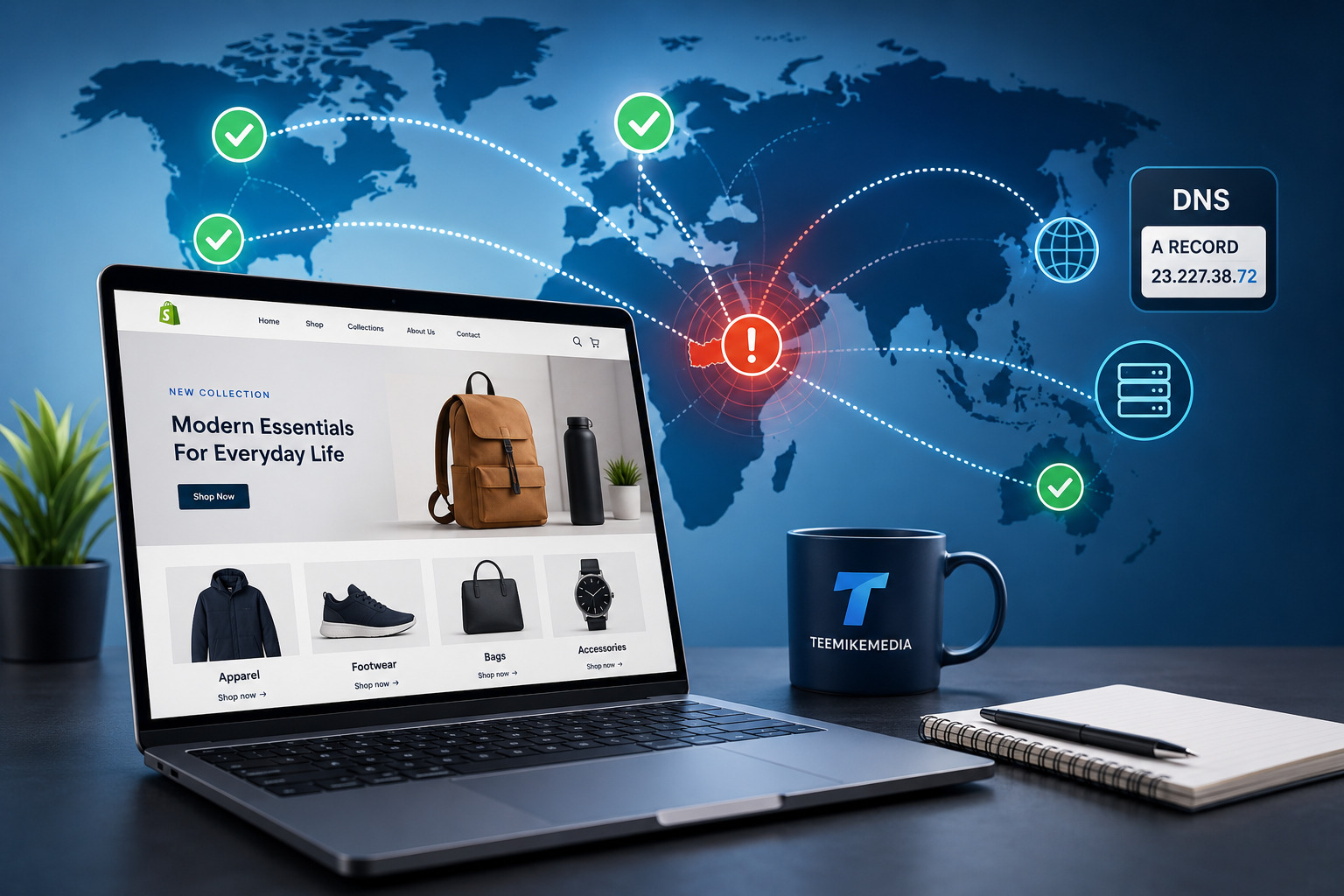

A Shopify store may work correctly for visitors in one country but refuse to load for visitors in another. Some store owners discover that their website opens through a VPN or from another country while customers using local internet providers receive a connection error, blank page or endless loading screen.
This problem can be particularly frustrating because the Shopify store itself may be active, products may be published and the Shopify-provided myshopify.com address may work normally. The difficulty appears only when visitors use the store’s custom domain.
One possible cause is an incorrect or conflicting DNS configuration at the third-party domain registrar. The root domain may be pointing to the wrong IP address, the www record may be incorrect, an outdated AAAA record may interfere with some networks or several A records may be competing with one another.
This guide explains how to diagnose a Shopify store that is not loading in your country, how to inspect the domain’s A and CNAME records and how to correct the problem without damaging the store’s email or other DNS services.
Quick answer
If your Shopify store works through a VPN or in other countries but not on your local network, check the custom domain under Shopify Admin → Settings → Domains. Compare the required DNS records with the records at your domain registrar. Correct the root A record, confirm the www CNAME points to shops.myshopify.com, remove conflicting web-hosting records and allow time for DNS changes to propagate.
Important note about the Shopify IP address
Shopify’s current official default IPv4 address for a manually connected third-party domain is 23.227.38.65. In one real troubleshooting case, the affected store began loading in Nigeria after the A record was changed from an address ending in .65 to a Shopify-provided address ending in .72. Do not apply that change blindly to every store. Open Shopify Admin → Settings → Domains and use the exact DNS value Shopify displays for your own domain.
Common Symptoms of a Regional Shopify Loading Problem
The issue may appear in several ways depending on the browser, device and internet provider being used.
- The store opens through a VPN but not without one
- The store opens abroad but not in Nigeria or another particular country
- The myshopify.com URL works but the custom domain does not
- The browser displays “This site can’t be reached”
- The browser reports that the server IP address could not be found
- The website loads on mobile data but not on Wi-Fi
- The website loads on one internet provider but not another
- The www version works but the root domain does not
- The root domain works but the www version does not
- The store loads intermittently
- The domain displays an SSL or privacy warning
These symptoms do not always have the same cause. Testing the store systematically is therefore more reliable than immediately changing random DNS records.
Why Can a Shopify Store Fail to Load in One Country?
DNS translates a domain name such as example.com into the server address used to deliver the website.
Different internet providers and public DNS services may temporarily hold different cached versions of the domain’s DNS records. When the domain has recently been changed or contains conflicting records, users on one network may reach the correct Shopify destination while users on another network reach an outdated or incorrect destination.
Possible causes include:
- An incorrect root A record
- More than one root A record
- An incorrect www CNAME record
- An outdated AAAA or IPv6 record
- DNS propagation after a recent change
- Incorrect nameservers
- Cloudflare proxy or SSL settings
- An SSL certificate still being issued
- A local internet provider caching old DNS information
- A browser or device DNS cache
- Domain verification not completed inside Shopify
- Regional routing or ISP problems
The key clue
If the Shopify store works through a VPN, the store itself is probably online. The problem may involve the custom domain, local DNS resolution, network routing or an internet-provider cache.
1. Test the Store Using Different Networks and Locations
Before editing DNS, confirm whether the problem is genuinely location-specific.
Perform these tests:
- Open the website using your normal Wi-Fi
- Open it using mobile data
- Try a second internet provider
- Test on another phone or computer
- Use an incognito browser window
- Try the root domain and the www version
- Connect to a reputable VPN location
- Ask someone in another country to test the website
Interpret the results
If the store fails everywhere, the issue is probably not limited to one country.
If it works only through a VPN or through certain internet providers, DNS caching, routing or an ISP-related problem becomes more likely.
If the myshopify.com address works but the custom domain does not, focus primarily on the custom-domain configuration.
2. Test the Shopify-Provided Domain
Every Shopify store has an address similar to:
your-store-name.myshopify.com
Open that address directly.
If the myshopify.com address works
The Shopify storefront is online, and the problem is more likely connected to the custom domain or DNS configuration.
If the myshopify.com address also fails
Check:
- Whether the online store is active
- Whether the store is password protected
- Whether the Shopify account has a billing problem
- Whether the theme has a serious technical error
- Whether Shopify is experiencing a platform incident
3. Check the Domain Status Inside Shopify
From the Shopify administrator dashboard, go to:
Settings → Domains
Select the affected custom domain and review any warning or action message.
Shopify may report issues such as:
- The A record does not point to Shopify
- The CNAME record is incorrect
- SSL is pending
- The domain is not verified
- Another A record is conflicting
- A DNS change is still being detected
The values shown in this screen should be treated as the primary instructions for that specific domain.
Do not rely only on an old tutorial
Shopify can update its domain requirements. Compare your DNS records with the values currently displayed in your own Shopify admin before changing anything.
4. Inspect the Root A Record
The root A record connects the main domain to an IPv4 address.
At the domain registrar, open the DNS-management area and locate the record with:
- Type: A
- Name or Host: @
Shopify’s current official default value for a manually connected third-party root domain is:
23.227.38.65
The record will commonly look similar to:
| Type | Host | Value | TTL |
|---|---|---|---|
| A | @ | 23.227.38.65 | Automatic or 1 hour |
Shopify’s official instructions also advise removing other A records for the root domain when they conflict with the Shopify connection. 1
Do not delete unrelated DNS records
MX, TXT and email-verification records may be required for business email, Google Workspace, Microsoft 365, Zoho Mail or other services.
Only modify records responsible for website routing unless you understand the purpose of the other entries.
5. The A Record Fix Discovered During Real Testing
In the case demonstrated in the accompanying video, the Shopify store loaded when tested outside the affected country but failed for some users in Nigeria.
The domain was purchased and managed through a third-party provider, which meant its DNS records had to be configured manually.
Testing indicated that the root A record was responsible. After the last segment of the Shopify-related IP address was changed from 65 to 72, the store began loading correctly on the affected network.
Why this case matters
It demonstrates that a regional loading issue can originate from the domain’s DNS destination rather than from the Shopify theme, products or customer’s browser.
Why the solution must not be applied blindly
Shopify’s published default remains 23.227.38.65. Therefore, readers should not change their DNS to an address ending in .72 simply because it fixed another store.
Use the .72 address only when one of the following applies:
- Shopify Admin explicitly displays that value for your domain
- Shopify Support supplies that value for your store
- A verified domain diagnostic confirms it
- You are reproducing a documented configuration supplied for the affected domain
Practical lesson
The important discovery is not that every Shopify store must use .72. The lesson is that the domain’s A record must match the exact Shopify destination assigned or currently required for that store.
6. Check the WWW CNAME Record
The www version of a third-party Shopify domain should normally use a CNAME record pointing to:
shops.myshopify.com
The record commonly looks like this:
| Type | Host | Destination |
|---|---|---|
| CNAME | www | shops.myshopify.com |
Shopify’s current Namecheap instructions, for example, specify an A record for @ and a CNAME record for www pointing to shops.myshopify.com. 2
Common CNAME mistakes include:
- Pointing www to the root domain incorrectly
- Leaving an old website builder’s CNAME active
- Using the complete domain in the host field when the registrar expects only www
- Creating both a CNAME and A record for www
- Adding quotation marks around the destination
7. Review the AAAA or IPv6 Record
An AAAA record points a domain to an IPv6 address.
Shopify’s current manual-connection documentation includes the IPv6 address:
2620:0127:f00f:5::
If Shopify Admin requests an AAAA record, make sure it matches the displayed value. If an old AAAA record points to a previous hosting provider, some networks may attempt to use that incorrect IPv6 destination. 3
Why IPv6 can create regional differences
Some internet providers prefer IPv6 while others still rely mainly on IPv4. A wrong AAAA record can therefore affect one provider even when the A record appears correct.
8. Remove Conflicting Website Records
A domain should not normally have several competing root A records unless the service specifically requires them.
Conflicting records may remain from:
- Previous WordPress hosting
- GoDaddy Website Builder
- Wix
- Squarespace
- Cloud hosting
- A parking page
- An old CDN
Compare every web-related record with the requirements shown inside Shopify.
Do not remove MX, SPF, DKIM, DMARC or other email-related records merely because they do not point to Shopify.
9. Allow Time for DNS Propagation
After changing DNS, different networks may update at different times.
Shopify states that domain updates often take effect within approximately two hours but can take up to two days. 4
During propagation:
- The website may work on one network but not another
- The www version may update before the root domain
- A VPN may show the updated result sooner
- Your browser may continue displaying a cached error
- SSL may remain pending temporarily
A change appearing immediately in one test does not mean every resolver worldwide has updated at the same moment.
10. Check the Shopify SSL Certificate
Shopify automatically provisions SSL for properly connected domains.
Inside Settings → Domains, look for:
- Connected
- SSL pending
- Needs attention
- Not connected
SSL may remain pending while DNS is incorrect or still propagating.
Avoid installing a separate SSL certificate for the Shopify storefront unless Shopify or the domain configuration specifically requires another setup.
11. Clear Browser and Device DNS Caches
After correcting the records, your device may continue using the old result.
Try the following:
- Open the website in an incognito window
- Restart the browser
- Restart the device
- Restart the router
- Switch between Wi-Fi and mobile data
- Temporarily test a public DNS resolver
- Clear the operating system’s DNS cache
Do not keep changing DNS repeatedly simply because one device still displays an old cached result.
12. Check Whether the Problem Is ISP-Specific
If the domain works on one Nigerian network but fails on another, the DNS configuration may already be correct while an internet provider is still caching an outdated result.
Collect the following evidence:
- The affected internet provider
- The exact browser error
- The time of the test
- Whether the root and www domains behave differently
- Whether a VPN resolves the problem
- Whether mobile data works
This information can help the domain provider, Shopify Support or the internet provider investigate the problem.
13. Review Cloudflare or Proxy Settings
If the domain uses Cloudflare, the DNS records may appear correct at the registrar while the authoritative DNS is actually managed inside Cloudflare.
Check:
- Whether the domain uses Cloudflare nameservers
- Whether the A and CNAME records are correct inside Cloudflare
- Whether the proxy is enabled
- Whether SSL mode is appropriate
- Whether redirect or firewall rules block a country
- Whether bot-protection settings affect legitimate visitors
When troubleshooting, follow Shopify’s current instructions for external proxies and confirm that the proxy is not hiding or replacing the required DNS destination.
Video Tutorial: Fix a Shopify Store That Does Not Load in Certain Countries
The following video demonstrates the real case in which a third-party domain’s A record was preventing a Shopify store from opening for users in a particular country.
What the video covers
- Confirming that the website works through another location
- Identifying the custom domain as the likely source
- Opening the domain registrar’s DNS settings
- Locating the root A record
- Correcting the Shopify-related IP value used in that case
- Testing the store again from the affected country
Check your own Shopify domain instructions first
The IP address shown in a historical or case-specific tutorial may not be the value currently required for your domain. Always compare it with Shopify Admin → Settings → Domains.
Shopify Regional Loading Troubleshooting Checklist
Shopify checks
- Test the myshopify.com address
- Open Settings → Domains
- Review connection warnings
- Confirm the primary domain
- Check SSL status
- Verify the storefront is active
- Check Shopify’s status page
DNS and network checks
- Confirm the root A record
- Confirm the www CNAME
- Review the AAAA record
- Remove conflicting website records
- Confirm the active nameservers
- Test Wi-Fi, mobile data and VPN
- Allow time for propagation
- Clear browser and DNS caches
Final Verdict
When a Shopify store loads in some countries but not in others, the problem should not immediately be blamed on the theme or Shopify platform.
First test the custom domain, the myshopify.com address, multiple internet providers and a VPN. If the custom domain is the only failing address, inspect its DNS configuration.
The root A record is one of the most important records. In the real case demonstrated in this tutorial, changing the ending of the Shopify-related IP address from .65 to .72 restored access for affected Nigerian users.
However, Shopify currently publishes 23.227.38.65 as its default IPv4 address for third-party root domains. Readers should therefore use the exact value displayed inside their own Shopify domain settings rather than copying an IP address from another store. 5
Also inspect the www CNAME, IPv6 record, competing A records, SSL status, active nameservers and DNS propagation before concluding that the store is being blocked in a country.
Our recommendation
Use Shopify Admin → Settings → Domains as the source of truth for the required DNS values. Correct only the relevant website records, preserve email records and test the store on several networks after the update.
Frequently Asked Questions
Why does my Shopify store work with a VPN but not in my country?
The domain may be resolving differently through your local internet provider because of incorrect DNS records, cached DNS information, IPv6 configuration or regional routing.
What is Shopify’s official A record?
Shopify’s current default IPv4 address for a manually connected third-party root domain is 23.227.38.65. Confirm the exact requirement in your Shopify admin before making changes.
Should I change 23.227.38.65 to an IP ending in .72?
Only when Shopify Admin, Shopify Support or a verified configuration for your domain instructs you to use that value. The .72 change fixed the specific store demonstrated in this tutorial, but it is not a universal instruction.
What should the Shopify www CNAME point to?
For a standard third-party Shopify domain, the www CNAME normally points to shops.myshopify.com.
Can multiple A records stop a Shopify store from loading?
Conflicting root A records can send visitors to different destinations. Remove unrelated website A records when Shopify identifies them as conflicting.
Can an AAAA record cause the problem?
Yes. An outdated IPv6 record may affect users on networks that prefer IPv6 even when the IPv4 A record is correct.
How long do Shopify DNS changes take?
They may take effect within a few hours, but Shopify advises that some domain updates can require up to two days.
Will changing DNS affect my business email?
Changing only the correct A or CNAME records should not normally affect email. Do not delete MX, SPF, DKIM, DMARC or email-verification records.
Why does the myshopify.com URL work but my custom domain does not?
This usually indicates that the Shopify store is online but the custom domain is not connected or resolving correctly.
Can Cloudflare cause regional Shopify loading problems?
Incorrect proxy, SSL, firewall or DNS settings in Cloudflare can affect access. Review the authoritative DNS configuration and any geographic firewall rules.
How can I test whether the problem affects only Nigeria?
Compare tests from Nigerian Wi-Fi, Nigerian mobile data, another country, a VPN and an external website-monitoring location.
Should I contact my registrar or Shopify?
Contact the registrar for help editing DNS records and Shopify Support for confirmation of the DNS values and domain status required by the store.
Need Help Fixing Your Shopify Domain?
If your Shopify store is not loading for customers in Nigeria or another country, Teemikemedia Agency can inspect the domain connection, DNS records, SSL status and Shopify settings to identify the cause.
Official Shopify references
Domain settings can change. Review Shopify’s current documentation and the values displayed inside your store before changing DNS.
Connect a third-party domain to Shopify manually